

Battery charger problems: fix them fast in 2026
TL;DR:
- Battery charger issues often stem from physical connection faults, software bugs, or battery degradation. Most problems are fixable at home through simple troubleshooting steps like cleaning ports and testing cables before considering repairs. Regular maintenance and software updates can prevent many charging failures, saving time and money.
Battery charger problems occur when the charging process is interrupted by hardware faults, software bugs, or battery degradation. These failures affect everything from iPhones and Samsung Galaxy handsets to laptops, car batteries, and electric bicycles. The most common culprits are dirty charging ports, faulty cables, and worn connectors, though software glitches have also caused high-profile failures in 2026. Understanding the root cause is what separates a five-minute fix from an unnecessary and expensive replacement.
What causes battery charger problems?
Physical connection failures are the leading cause of charging issues. Intermittent charging almost always points to a worn port or frayed cable conductor rather than a failing battery. If your device starts and stops charging when you move the cable, the port or the cable itself is the first thing to check.
Dirty or corroded charging ports are surprisingly common. Lint, dust, and moisture accumulate inside USB-C, Lightning, and Micro-USB ports over time, preventing the connector from seating properly. A port that looks fine to the naked eye can still have enough debris to block a reliable electrical connection.
Software bugs are a less obvious but equally disruptive cause. Apple’s iOS 26.5.1 update released in june 2026 fixed a wired charging failure on iPhone 17 and Air models when the battery was nearly empty. The bug caused the device to refuse wired power entirely, leaving users convinced their charger or port was broken when the fault was entirely in the software.
Battery condition itself plays a major role. When a battery is deeply discharged, its voltage can drop below the detection threshold of a smart charger, typically around 2V, causing the charger not to engage at all. This is not a fault in the charger. It is a safety feature designed to prevent charging a shorted or severely degraded cell.
Pro Tip: Always use manufacturer-approved or certified chargers. Overheating damages internal charger components and causes charging failure. Cheap, uncertified accessories are the most common source of voltage instability.
The key causes to watch for include:
- Lint or corrosion blocking the charging port
- Frayed or damaged charging cables
- Software bugs or third-party app conflicts
- Battery voltage too low for charger detection
- Overheating from uncertified or damaged accessories
How do you troubleshoot charging issues at home?
80–90% of mobile charging complaints are resolved by cleaning the charging port, testing cables, and performing a forced restart. That figure means the vast majority of people who think they need a repair or replacement actually need a five-minute maintenance check.
Follow these steps in order before spending money on repairs:
-
Clean the charging port. Use a non-conductive tool such as a wooden toothpick or a soft anti-static brush. Never use metal objects. Work gently to dislodge compacted lint. For a thorough approach, follow a dedicated charging port cleaning guide to avoid damaging the pins.
-
Test your cable and adapter. Swap in a known-good cable and a different wall adapter. If the device charges with the replacement, your original cable or adapter is the fault. Cables fail far more often than ports do.
-
Perform a forced restart. On iPhone, press and release Volume Up, press and release Volume Down, then hold the Side button until the Apple logo appears. On Samsung Galaxy devices, hold Power and Volume Down together for ten seconds. This clears temporary software states that can block charging.
-
Check for OS updates. If you own an iPhone 17 or Air and wired charging has stopped working, install iOS 26.5.1 immediately. The update directly addresses the wired charging refusal bug that affected these models.
-
Boot into Safe Mode (Android). Charging in Safe Mode disables third-party apps. If your device charges normally in Safe Mode, a recently installed app is interfering with the charging process. Uninstall recent apps one by one to identify the culprit.
-
Try wireless charging as a diagnostic. If wired charging fails but wireless charging works, the fault is almost certainly in the port, the cable, or a software bug affecting wired power negotiation. MagSafe and Qi chargers bypass the physical connector entirely.
-
Decode blinking charger lights. A blinking light on a charger signals fault states including poor terminal contact, thermal protection activation, or an over-discharged cell. Consult your charger’s manual for the specific flash pattern. Three rapid blinks often means thermal cutoff; a slow single blink usually means the battery voltage is too low to begin charging.
Pro Tip: If you are troubleshooting a charging port fault and the port feels loose or wobbles when a cable is inserted, the port itself has likely shifted on the board. This requires professional repair or replacement.
Seek professional help when you notice physical damage to the port, a swollen battery, burning smells, or when none of the steps above produce any change.

Smart chargers vs manual chargers: which fails differently?
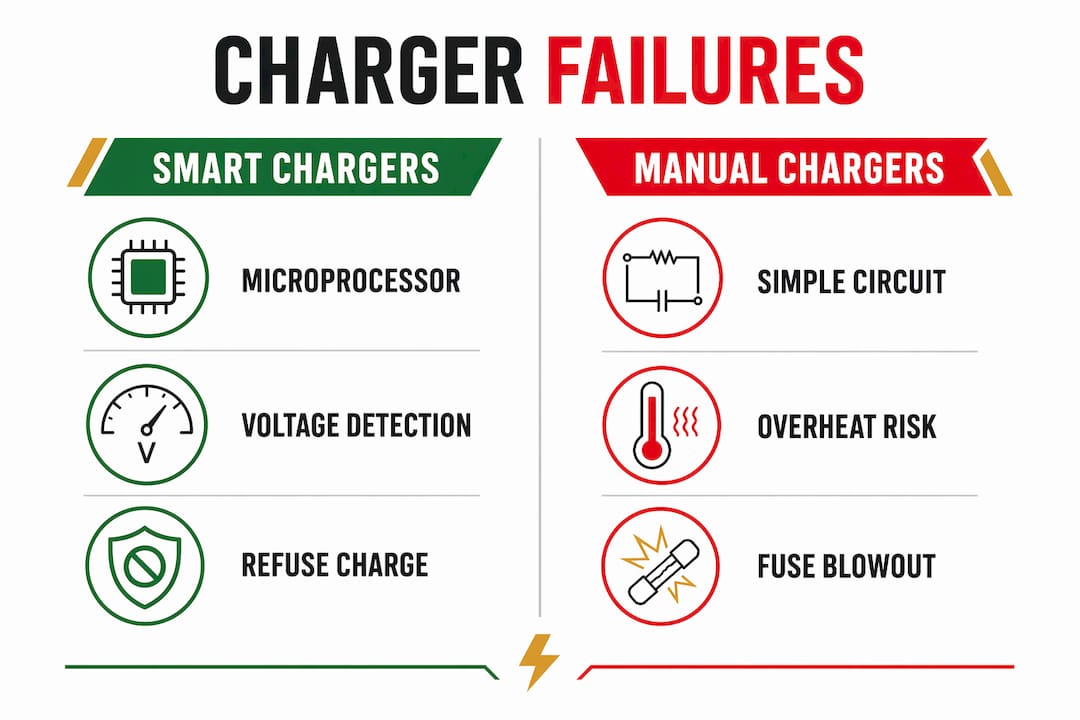
Charger design determines how and why a charging failure presents itself. The table below compares the three main types you are likely to encounter.
| Charger Type | Common Failure Mode | Typical Fix |
|---|---|---|
| Smart charger (microprocessor-based) | Refuses to start when battery voltage is below ~2V | Use a manual charger briefly to raise voltage, then switch back |
| Manual or older charger | No low-voltage protection; can overcharge or damage cells | Replace with a certified smart charger; monitor closely |
| Wireless (Qi or MagSafe) | Cannot revive a completely dead device; alignment-sensitive | Confirm alignment; use wired charging first to raise voltage |
| Car battery charger | Corroded terminals prevent contact; parasitic drain causes deep discharge | Clean terminals; use a trickle charger for long-term storage |
| Caravan or leisure battery charger | Multi-stage charging interrupted by voltage fluctuations | Check power supply stability; use a dedicated leisure battery charger |
Smart chargers include microprocessor-based safety logic that requires a minimum voltage before engaging the charging cycle. This protects users from charging a shorted or damaged cell, but it creates a paradox: a deeply discharged battery cannot be charged by the very device designed to charge it. The solution is to use a basic manual charger for a short period to raise the voltage above the detection threshold, then switch to the smart charger.
Wireless charging is useful as a workaround for wired port failures, but it cannot revive a completely dead device. The receiver coil in the device still needs a minimum power level to initialise. For fully dead batteries, a brief wired connection or a manual charger is the only way to start the recovery process.
How does battery condition affect charging?
Battery health directly determines whether a charger can do its job. As a lithium-ion battery ages, its internal resistance increases. Higher resistance means less current gets through during charging, which slows charge times and can cause the charger to report errors or stop prematurely.
The signs of a failing battery are distinct from charger faults:
- Rapid drain: The battery drops from 80% to 20% within an hour of normal use
- Inability to hold charge: The device dies at 15% or shuts off unexpectedly
- Swelling: A visibly bulging battery is a safety risk and requires immediate replacement
- Charging only at specific angles: This points to a port fault, not the battery itself
You can check battery health directly on most devices. On iPhone, go to Settings > Battery > Battery Health and Charging. Apple flags batteries below 80% capacity as degraded. On Samsung Galaxy devices, the hidden code *#0228# opens a battery status screen showing voltage and temperature in real time.
| Battery Health Indicator | What It Means | Recommended Action |
|---|---|---|
| Above 80% capacity | Normal operation | Continue regular use |
| 79–60% capacity | Noticeably reduced runtime | Plan for replacement soon |
| Below 60% capacity | Severe degradation | Replace battery promptly |
| Swollen or bulging | Physical cell failure | Stop use immediately; replace |
Extending battery life reduces how quickly you reach these thresholds. Avoiding full 0–100% charge cycles, keeping the battery between 20% and 80%, and not charging overnight without a smart charger all make a measurable difference. For a full breakdown, the battery life tips guide at Buy2fix covers every major device category. Recognising the signs of a failing battery early gives you time to act before the device becomes unusable.
Key takeaways
Most battery charger problems are caused by physical connection faults, software bugs, or battery degradation, and the majority are fixable at home before any professional repair is needed.
| Point | Details |
|---|---|
| Clean the port first | 80–90% of charging complaints resolve with port cleaning, cable testing, and a forced restart. |
| Software bugs cause real failures | iOS 26.5.1 fixed a wired charging refusal bug on iPhone 17; always keep your OS updated. |
| Smart charger safety logic | Chargers will not engage if battery voltage is below ~2V; this is a safety feature, not a fault. |
| Battery health drives charging performance | Batteries below 80% capacity charge slower and less reliably; below 60%, replacement is necessary. |
| Wireless charging is a diagnostic tool | If wireless works but wired does not, the fault is in the port, cable, or wired power negotiation software. |
What i have learned after years of watching people replace the wrong thing
The most expensive mistake I see repeatedly is people buying a new phone because the charger stopped working. Nine times out of ten, the fault is a £5 cable or a port full of pocket lint. The device itself is perfectly fine.
What strikes me about the iPhone 17 charging bug is how it exposed a gap in user knowledge. Thousands of people were convinced their hardware had failed. The fix was a software update. That gap between “my charger is not working” and “my software needs updating” costs people real money when they go straight to a repair shop without trying the basics first.
I am also cautious about the advice to always trust smart chargers. They are excellent devices, but their voltage threshold logic creates genuine confusion. A battery that will not charge on a smart charger is not necessarily dead. It may just need a brief manual charge to recover enough voltage for the smart charger to recognise it. That distinction matters enormously for car batteries and leisure batteries, where people routinely scrap perfectly recoverable units.
My honest recommendation: work through the troubleshooting steps in order, be systematic about testing cables and adapters separately, and do not replace a battery until you have confirmed the charger and port are not the actual fault. The iPhone battery issue guide at Buy2fix is a good reference for understanding how software and hardware faults interact on Apple devices specifically.
— Adewale
Get the right parts and repairs from Buy2fix
If you have worked through the troubleshooting steps and the fault is confirmed in the port or the battery, Buy2fix stocks the replacement parts and accessories you need. Buy2fix supplies charging port replacement components for iPhone, Samsung Galaxy, Huawei, Xiaomi, and OPPO devices, along with batteries, cleaning kits, and repair tools for both DIY buyers and professional technicians. Every order comes with free UK mainland shipping, a 30-day return policy, and warranty support on eligible items. Visit Buy2fix to find the right part for your device, check compatibility, and get your device back to full working order without paying for a full service you do not need.
FAQ
Why won’t my charger work even with a new cable?
A new cable rules out the cable as the fault, but the charging port, the wall adapter, or a software bug may still be the cause. Clean the port thoroughly and perform a forced restart before assuming the port needs replacing.
What does a blinking light on a battery charger mean?
A blinking charger light signals a fault state such as poor terminal contact, thermal protection activation, or a battery voltage too low to begin charging. Check your charger’s manual for the specific flash pattern, as the meaning varies by model.
Can a software update fix charging problems?
Yes. Apple’s iOS 26.5.1 released in june 2026 fixed a wired charging failure on iPhone 17 and Air models caused entirely by a software bug. Always check for pending OS updates before assuming a hardware fault.
How do i know if my battery needs replacing?
Check battery health in your device settings. On iPhone, go to Settings > Battery > Battery Health and Charging. A reading below 80% indicates degraded capacity. A swollen battery requires immediate replacement regardless of the percentage shown.
Is wireless charging safe for a damaged port?
Wireless charging is a safe and practical workaround when a wired port is damaged or faulty. It bypasses the physical connector entirely, though it cannot revive a completely dead battery on its own.
Recommended
Let customers speak for us
I ❤️ love it, it's absolutely amazing I'm sooo happy 😊

Great

I saw this item and it was just what I was looking for. I found it here but not in Amazon or e-bay. However, it was in UK, I was surprised to find that they were able to ship it to the US. Excellent company, would do business with again

This is great for when out and about, to sharpen either coloured pencils, or watercolour pencils….would order again.

Great items would bye again

I have purchased several items from this store before. Recently, I encountered an issue with my latest order. After reporting the problem to customer support, they were consistently attentive and made every effort to resolve the situation. Upon investigation, they acknowledged the issue and promptly fixed it. This experience has increased my level of trust in this store.
Thank you so much. I'm so happy.

très bien

BC70 Car Bluetooth 5.0 FM Transmitter Radio Adapter Dual Display Wireless Handsfree Call MP3 Music Player QC3.0 PD USB Charger

A quite sturdy cover, if you are looking for full protection and a more business-like style, this cover perfectly fulfills its purpose.
The shipping was fast, and it was delivered in perfect condition.

For LG TV Bluetooth Handheld Infrared Voice Multi-Function Remote Control(AKB75855501)

Tusen tack för bästa service och produkt som jag vänlig önskar dig tack

Works correctly and no issues so far

Took a while to get here but it was all good, watch looks brand new after replacement

What a fantastic 👏🏻 stylish case that has helped my phones temperature in the heatwave!!
Perfect 👌🏻 also it's cool as f##k
