

Battery drain explained: causes, fixes, and prevention
TL;DR:
- Battery drain on smartphones results from multiple factors like background apps, weak signals, and battery aging. Diagnosing issues with usage screens and managing connectivity can significantly improve battery life, while hardware replacement is usually a last resort. Following proper maintenance habits prolongs battery health and reduces unexpected power loss.
Battery drain is the rapid, measurable loss of charge in a smartphone caused by specific software behaviours, hardware conditions, and connectivity demands working against your battery simultaneously. Most people blame a single culprit, usually a rogue app, but the reality is almost always a combination of factors. Background processes, screen usage, weak network signals, and battery ageing each play a distinct role. Understanding which one is hitting you hardest is the fastest route to a fix.
What causes battery drain on your smartphone?
Battery drain on a smartphone comes from four primary sources: background app activity, screen power consumption, wireless connectivity, and battery degradation over time. These rarely act alone. A phone searching for a weak 5G signal while running a social media app in the background and displaying a bright screen can lose charge at a rate that feels alarming.
Lithium-ion batteries, the standard in virtually every modern smartphone, are rated for a finite number of charge cycles. Ageing lithium-ion batteries lose 20–30% of their capacity after approximately 500 full charge cycles. That means a phone that once lasted a full day on a charge may now struggle to reach teatime, even with identical usage habits.
Normal idle overnight battery loss sits at 1–5%. Losses above 10–25% overnight indicate background activity, a weak cellular signal, or battery ageing. That single benchmark is one of the most useful diagnostic tools you have, and it costs nothing to check.
How do you identify apps draining your battery?
Both Android and iOS include built-in battery usage screens that show exactly which apps consumed the most power over the past 24 hours or 7 days. These screens are your first stop when diagnosing unexpected battery life issues.
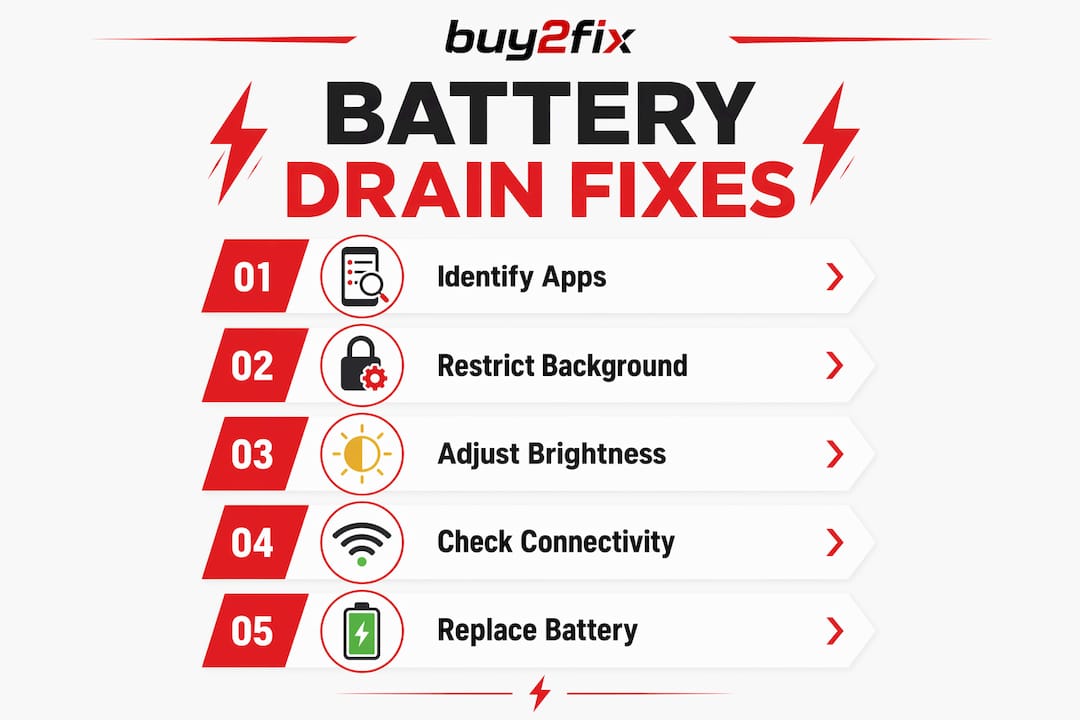
On Android, go to Settings > Battery > Battery Usage. On iPhone, go to Settings > Battery. Look for any app consuming a disproportionate share of battery relative to how much you actually use it. Social media platforms, navigation apps, and streaming services are the most common offenders because they combine screen time, location access, and background data refresh.
The less obvious culprit is what engineers call a “wake lock.” Apps with high wake-lock counts keep the processor awake even when the screen is off, causing significant drain despite minimal visible screen time. A messaging app that checks for new content every few seconds is a classic example.
Key signs that an app is causing excessive drain:
- It appears in the top three battery consumers despite minimal use.
- Your phone feels warm when the screen is off and you have not been actively using it.
- Battery percentage drops noticeably faster after installing or updating a specific app.
- The app requests location access “always” rather than “only while using.”
Restricting background activity for the top-consuming apps resolves roughly 60% of sudden battery drain cases. That is a significant return for a change that takes under two minutes to make.
OS updates are another trigger. 75% of users experience noticeable battery issues after major OS updates due to background indexing and reindexing processes. These typically settle within one to three days. If drain remains elevated after that window, the update may have introduced a bug worth investigating through your device’s support forums.
Pro Tip: After a major OS update, leave your phone charging overnight and use it normally for two full days before drawing any conclusions about battery performance. Post-update indexing skews the numbers significantly.
How does network connectivity affect battery life?
Connectivity is one of the most underestimated causes of smartphone battery problems. When your phone cannot find a strong signal, the modem works harder and draws more power to maintain a connection. A phone sitting in a low-signal area can lose charge at twice the rate of the same phone in full-signal coverage.
Here is how to manage connectivity-related drain step by step:
- Check your signal strength. If you are consistently on one or two bars of cellular coverage, your modem is working overtime.
- Toggle Airplane Mode, then re-enable Wi-Fi. Toggling Airplane Mode and manually switching Wi-Fi back on stops the modem from hunting for a signal while keeping you connected to the internet.
- Disable 5G in weak coverage areas. 5G consumes more power than LTE, and in areas with patchy 5G coverage, your phone constantly switches between bands. Forcing LTE-only mode in your network settings can extend battery life noticeably.
- Turn off Wi-Fi scanning and Bluetooth scanning. Both Android and iOS scan for nearby networks and devices even when Wi-Fi and Bluetooth are switched off. Disabling these background scans in location settings reduces unnecessary power use.
- Enable Wi-Fi calling. If your carrier supports it, Wi-Fi calling routes voice calls over your broadband connection rather than the cellular network. In low-signal homes or offices, this alone can make a meaningful difference.
Pro Tip: Run a controlled overnight test: one night with Airplane Mode on and Wi-Fi enabled, one night with normal connectivity. Compare the battery drop. The difference tells you exactly how much your cellular signal is costing you.
Does screen brightness really affect battery consumption?
The screen is the single largest power consumer on most smartphones during active use. High brightness and screen refresh rates of 90–120Hz are consistently among the largest contributors to daily power consumption. Adjusting screen settings is therefore one of the highest-impact changes you can make.
Practical adjustments that reduce screen-related power use:
- Enable adaptive brightness. This adjusts screen brightness automatically based on ambient light, preventing the screen from running at full brightness indoors.
- Reduce screen timeout. Setting the screen to lock after 15–30 seconds of inactivity rather than two minutes makes a measurable difference over a full day.
- Lower the refresh rate. If your phone offers a 120Hz display, switching to 60Hz in settings can extend battery life, particularly during low-activity periods like reading or browsing.
- Disable Always-On Display. Always-on display features keep a portion of the screen active at all times. They are convenient, but they add a constant, low-level power draw throughout the day.
- Use a dark theme. On phones with OLED or AMOLED screens, dark mode genuinely saves power because black pixels on these screens are switched off entirely rather than lit.
What does battery health mean and when should you replace it?
Battery health refers to the current maximum charge capacity of your battery compared to its original specification. A battery at 80% health can only hold 80% of the charge it held when new. The phone’s power consumption has not changed, but the tank is smaller. This is why an older phone feels like it drains faster even when you use it the same way.
Symptoms of a battery that needs attention go beyond simple drain:
| Symptom | What it likely means |
|---|---|
| Rapid percentage drops (e.g. 30% to 5% suddenly) | Battery capacity severely degraded |
| Phone shuts down above 0% charge | Battery cannot sustain load at low charge |
| Noticeable heat during light tasks | Degraded cells working harder to deliver power |
| Swelling or a raised back panel | Physical battery failure; replace immediately |
| Percentage jumps when plugged in | Inaccurate battery calibration |
You can check battery health directly on iPhone under Settings > Battery > Battery Health & Charging. Android users on Samsung Galaxy devices can access a battery diagnostic through the Samsung Members app. For other Android devices, the battery health figure is not always publicly listed in standard settings.
Monthly battery calibration, achieved by fully discharging and then fully charging the battery, helps maintain accurate percentage readings and prevents misleading drain perceptions. This is not a cure for a degraded battery, but it keeps the readings honest.
When battery health drops below 80% on an iPhone, Apple flags it as needing service. For Android devices, the threshold is less standardised, but consistent rapid drain combined with heat or unexpected shutdowns signals that a replacement is worth considering. Buy2fix stocks replacement batteries for iPhone, Samsung Galaxy, Huawei, and other major brands, with quality checks before dispatch.
For a detailed walkthrough of symptoms, the guide on signs of failing phone batteries covers what to look for before committing to a replacement.
How do you prevent battery drain over the long term?
Long-term battery management comes down to consistent habits rather than one-off fixes. The phones that hold their battery health longest are the ones whose owners pay attention to a few simple rules.
- Monitor battery usage weekly. Catching a new high-drain app early prevents weeks of unnecessary drain.
- Keep software updated. Updates frequently include battery optimisation patches. The short-term post-update drain is worth the long-term gain.
- Use optimised charging. Both iOS and Android now offer charging features that pause the final top-up to reduce chemical wear on the battery. Starting the day at 80% rather than 100% is normal and healthy.
- Avoid charging in hot environments. Heat is the primary accelerant of lithium-ion degradation. Charging your phone on a sunny windowsill or under a duvet significantly shortens battery lifespan.
- Limit background activity to essential apps. Review which apps have background refresh enabled and disable it for anything non-critical.
- Adjust connectivity based on location. Switch to LTE in weak 5G areas, and disable Bluetooth when you are not actively using wireless accessories.
Pro Tip: Set a monthly reminder to check your battery usage statistics and review which apps have gained background permissions. App updates frequently re-enable permissions that you previously restricted.
For a broader set of maintenance habits, the guide on extending battery life covers techniques applicable across smartphones, tablets, and laptops.
Key takeaways
Fixing battery drain requires diagnosing the specific cause first, whether that is background apps, connectivity, screen settings, or battery degradation, before making any hardware changes.
| Point | Details |
|---|---|
| Diagnose before replacing | Check battery usage stats and overnight drain figures before assuming the battery needs replacement. |
| Background apps are the top cause | Restricting background activity for heavy apps resolves around 60% of sudden drain cases. |
| Connectivity drains silently | Weak cellular signals force the modem to work harder; Airplane Mode with Wi-Fi is an effective workaround. |
| Screen settings matter | Reducing brightness, refresh rate, and screen timeout delivers significant daily power savings. |
| Battery health degrades over time | Lithium-ion batteries lose 20–30% capacity after roughly 500 charge cycles; replacement is warranted below 80% health. |
What I have learned from years of watching people misdiagnose battery problems
The most common mistake I see is people replacing a perfectly functional battery because they skipped the diagnostic steps. A phone that drains fast after an OS update does not need new hardware. It needs two days and a background app audit.
The second most common mistake is blaming the battery when the real culprit is a single app running wake locks in the background. I have seen phones go from lasting six hours to lasting fourteen simply by revoking background access from one social media app. That is not an exaggeration.
What genuinely surprises people is the connectivity angle. Most smartphone users have never considered that sitting in a basement office with one bar of signal is costing them three to four hours of battery life per day. The fix takes thirty seconds: toggle Airplane Mode, re-enable Wi-Fi, and the modem stops hunting.
My honest advice is to work through the software fixes methodically before touching the hardware. Check the step-by-step battery diagnosis guide and follow it in order. If you have done all of that and the phone still shuts down unexpectedly, heats up during light use, or shows health below 80%, then a battery replacement is the right call. Not before.
— Adewale
Battery parts and advice from Buy2fix
If you have worked through the software fixes and your phone still struggles, the battery itself is likely the issue. Buy2fix supplies replacement batteries for iPhone, Samsung Galaxy, Huawei, Xiaomi, OPPO, and a wide range of other devices. Every part goes through a quality check before dispatch, and all orders to UK mainland addresses ship free. Whether you are a DIY repairer or a professional technician, the Buy2fix battery range covers the most common models with clear specifications and warranty support on eligible items. If you are unsure whether your battery needs replacing or want guidance on the right part for your device, the Buy2fix team is available to help you make the right call before you spend anything.
FAQ
What is the main cause of battery drain on smartphones?
Background app activity is the leading cause, responsible for roughly 60% of sudden drain cases. Weak cellular signals, high screen brightness, and battery ageing each contribute significantly as well.
How do I know if my battery needs replacing?
Check battery health in your phone’s settings. On iPhone, a reading below 80% warrants replacement. Unexpected shutdowns above 0%, persistent heat during light use, and sudden large percentage drops are additional warning signs.
Does 5G drain battery faster than 4G LTE?
Yes. 5G consumes more power than LTE, particularly in areas with inconsistent 5G coverage where the phone switches between bands repeatedly. Forcing LTE-only mode in weak 5G areas extends battery life.
Why does my battery drain faster after an OS update?
Post-update background indexing causes elevated drain for one to three days in the majority of cases. If drain remains high after that window, check for update-related bugs through your device’s support community.
How often should I calibrate my battery?
A full discharge followed by a full charge once a month helps maintain accurate battery percentage readings and prevents the phone from misreporting its charge level.
Recommended
Let customers speak for us
Great

I saw this item and it was just what I was looking for. I found it here but not in Amazon or e-bay. However, it was in UK, I was surprised to find that they were able to ship it to the US. Excellent company, would do business with again

This is great for when out and about, to sharpen either coloured pencils, or watercolour pencils….would order again.

Great items would bye again

I have purchased several items from this store before. Recently, I encountered an issue with my latest order. After reporting the problem to customer support, they were consistently attentive and made every effort to resolve the situation. Upon investigation, they acknowledged the issue and promptly fixed it. This experience has increased my level of trust in this store.
Thank you so much. I'm so happy.

très bien

BC70 Car Bluetooth 5.0 FM Transmitter Radio Adapter Dual Display Wireless Handsfree Call MP3 Music Player QC3.0 PD USB Charger

A quite sturdy cover, if you are looking for full protection and a more business-like style, this cover perfectly fulfills its purpose.
The shipping was fast, and it was delivered in perfect condition.

For LG TV Bluetooth Handheld Infrared Voice Multi-Function Remote Control(AKB75855501)

Tusen tack för bästa service och produkt som jag vänlig önskar dig tack

Works correctly and no issues so far

Took a while to get here but it was all good, watch looks brand new after replacement

What a fantastic 👏🏻 stylish case that has helped my phones temperature in the heatwave!!
Perfect 👌🏻 also it's cool as f##k

I love it!
