

Battery issues in laptop: fix, replace, and maintain
TL;DR:
- Laptop batteries degrade over time, leading to faster draining, charging issues, or physical damage. Running a Windows Battery Report helps identify capacity loss and whether replacement is necessary. Software troubleshooting and careful part matching can prevent unnecessary repairs and ensure safety during replacement.
Laptop battery issues are defined as any fault that causes a battery to drain faster than expected, fail to charge, or deliver less runtime than its rated capacity. Lithium-ion batteries, the chemistry used in virtually every modern laptop, degrade naturally through charge cycles. Most batteries retain 70–80% capacity after 2–3 years of regular use, and replacement becomes necessary once capacity drops below 50%. Understanding where the fault lies, whether in software, hardware, or the battery cell itself, determines whether you need a five-minute fix or a full replacement. Buy2fix stocks a broad range of laptop battery parts for DIY repairs and professional technicians alike.
What are the signs of battery failure in a laptop?
Battery failure rarely happens without warning. The symptoms build gradually, and catching them early saves you from an unexpected shutdown at the worst possible moment.
The most common signs include:
- Rapid drain. A battery that once lasted six hours now struggles past two. This points to significant capacity loss, often caused by hundreds of charge cycles wearing down the lithium-ion cells.
- Unexpected shutdowns. The laptop powers off at 20%, 30%, or even 40% charge. The battery’s voltage drops faster than the operating system can track, so the system shuts down before the reported percentage reaches zero.
- “Plugged in, not charging” message. This appears in the Windows taskbar and can mean a software fault, a damaged charging port, or a failing battery. It is one of the most common laptop battery problems reported by users.
- Physical swelling. A battery that bulges, causes the trackpad to lift, or makes the chassis creak is a critical failure. Stop using the laptop immediately. Swollen lithium-ion cells carry a fire risk.
- Incorrect charge percentage. The battery jumps from 60% to 10% in minutes, or shows 100% while the laptop behaves as though it is nearly flat.
How to run a Windows Battery Report
Windows includes a built-in diagnostic tool that most users never find. Open Command Prompt as administrator and type powercfg /batteryreport. Windows generates an HTML file showing your battery’s design capacity versus its current full-charge capacity. A battery showing 40% of its original design capacity needs replacing. This single check tells you more than any third-party app.
Pro Tip: Run the Battery Report before buying a replacement. It confirms whether the fault is the battery itself or a charging circuit issue, saving you from an unnecessary purchase.
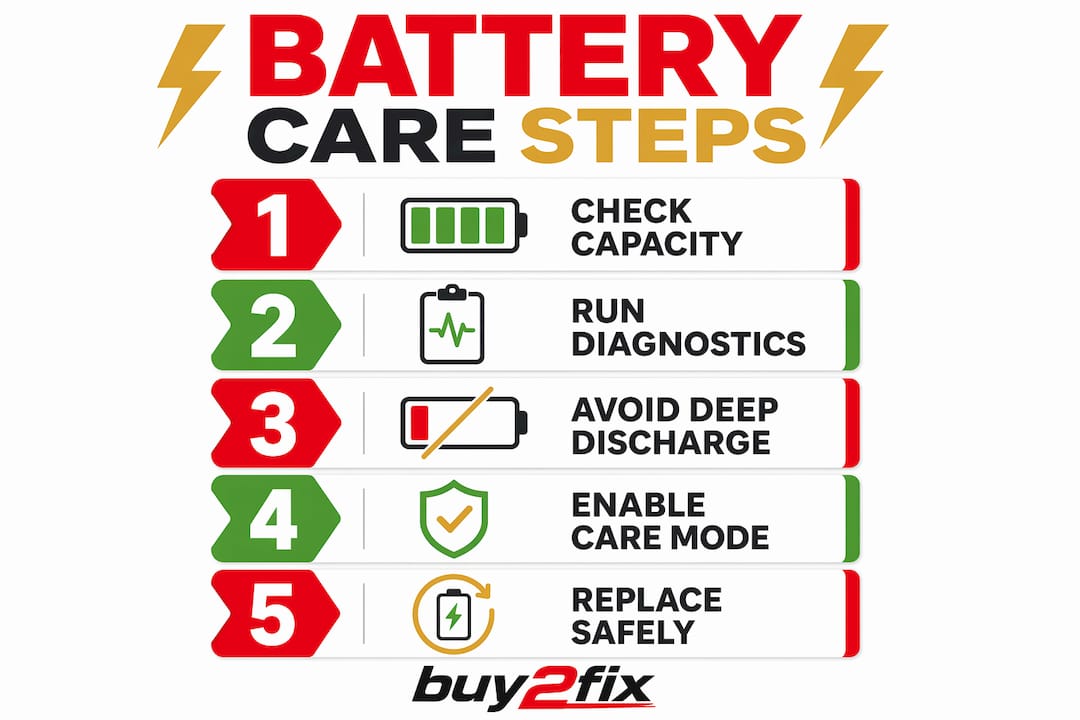
How to troubleshoot laptop battery issues with software and hardware checks
Most battery faults that appear hardware-related are actually software problems. Software causes 50–70% of “plugged in, not charging” faults, and a power drain reset resolves many of them in under two minutes.
Work through these steps before spending money on parts:
- Power drain reset. Shut down the laptop, disconnect the charger, and remove the battery if it is accessible. Hold the power button for 30 seconds. This discharges residual capacitor charge and resets the battery management circuitry. Reconnect and restart.
- Uninstall the ACPI battery driver. Open Device Manager, expand “Batteries,” right-click “Microsoft ACPI-Compliant Control Method Battery,” and select “Uninstall device.” Restart the laptop. Windows reinstalls the driver automatically. Power drain operations alone address around 40% of charging faults quickly.
- Update BIOS and firmware. Manufacturers release BIOS updates specifically to fix battery reporting bugs and charging threshold errors. Check your manufacturer’s support page and install any pending firmware updates.
- Inspect the charger and cable. Faulty USB-C cables cause 70% of charging problems in laptops that use USB-C power delivery. Test with a known-good charger of the correct wattage. A 45W charger on a laptop that requires 65W will charge slowly or not at all.
- Check the charging port. Inspect the port for bent pins, debris, or carbon scoring. A loose connection causes intermittent charging that mimics battery failure.
- Review battery preservation settings. Many manufacturers include battery health software that caps charging at 80% to reduce wear. If this is enabled, the laptop will never show 100%. This is normal behaviour, not a fault.
Pro Tip: Avoid letting your battery reach 0% regularly. Deep discharges accelerate lithium-ion degradation faster than almost any other usage habit.
When and how to safely replace a laptop battery
Replacement is the right call when the battery holds less than 50% of its original design capacity, or when it can no longer support a reasonable workload. Physical swelling requires immediate action regardless of capacity figures.
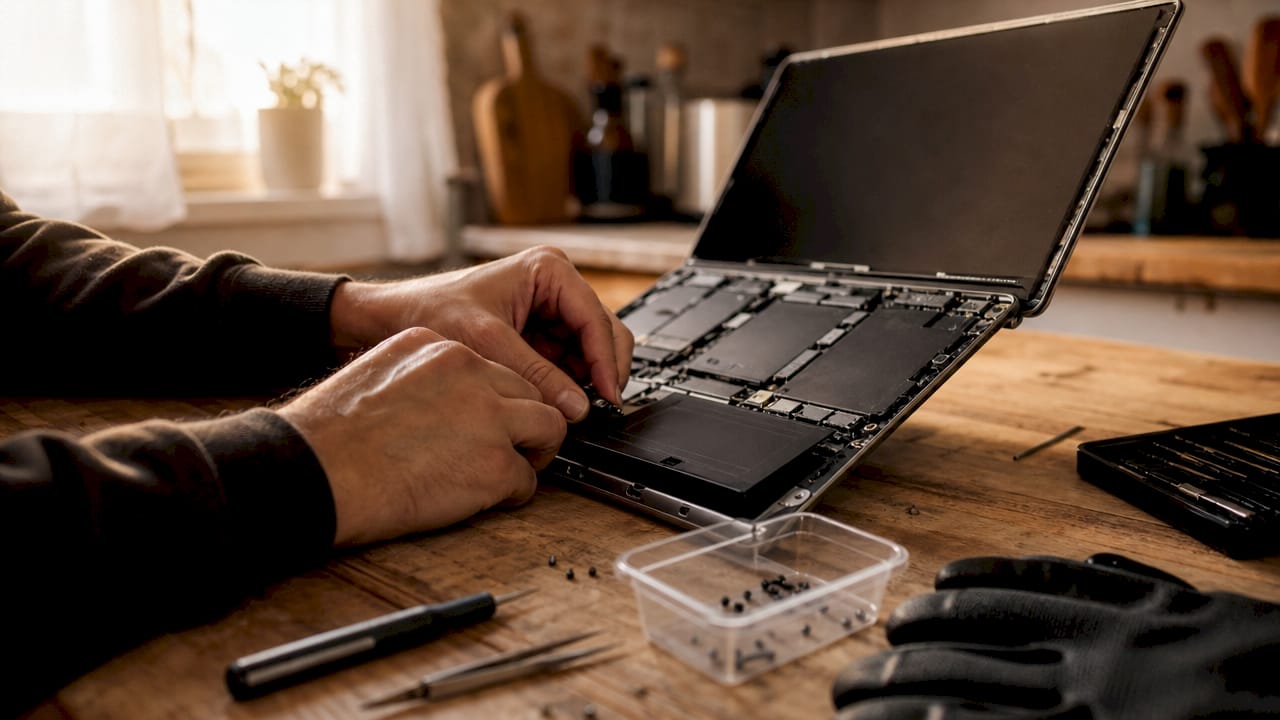
OEM vs third-party batteries
Replacement batteries cost £25–60 for third-party options and typically 25–40% more for OEM parts. OEM batteries guarantee compatibility and accurate firmware reporting. Third-party batteries vary in quality. Some report incorrect charge percentages because their firmware does not match the laptop’s battery management system. For a daily work machine, the OEM premium is worth it. For an older laptop used occasionally, a quality third-party battery is a reasonable choice. Buy2fix stocks both options across major brands, with quality checks before dispatch.
Getting the part number right
Exact battery model numbers must match for a safe replacement. An HP battery labelled HSTNN-IB6N cannot be swapped for a visually similar part with a different code. Voltage differences and pin count mismatches cause system failures even when the battery physically fits. Check the label on your existing battery or use your laptop’s model number to find the correct replacement. Buy2fix’s DIY replacement guide walks you through identifying the right part.
Replacing glued-in ultrabook batteries
Ultrabooks from the past five years often use adhesive-mounted batteries rather than screwed-in packs. Applying 99% isopropyl alcohol along the battery edges softens the adhesive without generating heat. Gentle warmth from a heat mat set below 50°C also works. Never use metal tools to prise the battery out forcibly. Piercing a lithium-ion cell releases toxic gases and can cause a fire.
Pro Tip: Take photos of every cable and connector before you disconnect anything. Reassembly is where most DIY repairs go wrong.
How to extend your laptop battery life and prevent early failure
Prevention is significantly cheaper than replacement. The habits that protect a lithium-ion battery are simple, but most users ignore them until the damage is done.
Key maintenance practices:
- Stay in the 40–80% charge range. Keeping lithium-ion batteries between 40–80% reduces degradation by up to 30%. Constant full charges and deep discharges create chemical stress that shortens cell life.
- Manage heat aggressively. Overheating is the primary cause of rapid battery degradation. Keep at least 20–30mm of clearance around the laptop’s vents and clean the fan every six months with compressed air.
- Avoid soft surfaces. Using a laptop on a bed or sofa blocks the bottom vents and raises internal temperatures significantly. A hard, flat surface or a laptop stand makes a real difference to long-term battery health.
- Keep firmware updated. Manufacturers regularly release updates that improve battery management algorithms. An outdated BIOS can cause the system to charge inefficiently or report capacity incorrectly.
- Monitor battery health regularly. Run the Windows Battery Report every few months. Catching a decline early gives you time to plan a replacement before the battery fails completely.
Pro Tip: If your laptop supports it, enable the manufacturer’s battery care mode, which caps charging at 80%. This single setting can add years to battery life for users who work plugged in most of the day.
For a deeper look at habits that protect battery cells across all devices, Buy2fix’s guide on extending battery life covers the full picture.
Key takeaways
Resolving battery issues in a laptop requires identifying whether the fault is software-based, hardware-related, or caused by genuine cell degradation before spending money on parts.
| Point | Details |
|---|---|
| Check capacity first | Run Windows Battery Report to confirm actual capacity before buying a replacement. |
| Try software fixes first | Reinstalling ACPI drivers and resetting power resolve the majority of charging faults. |
| Match part numbers exactly | Voltage or pin mismatches cause system failures even when a battery physically fits. |
| Keep charge between 40–80% | This range reduces lithium-ion degradation by up to 30% over the battery’s life. |
| Treat swelling as urgent | A swollen battery is a safety hazard and requires immediate replacement and proper disposal. |
What I have learned from years of watching batteries fail
By Adewale
The most common mistake I see is people assuming a “plugged in, not charging” message means the battery is dead. Nine times out of ten, it is a driver issue or a dodgy cable. I have watched people spend £50 on a new battery when a two-minute driver reinstall would have fixed the problem entirely. Always exhaust the software options first.
The second mistake is buying a battery based on physical size alone. I cannot stress this enough: the part number must match exactly. I have seen laptops that refused to boot, or that showed permanently incorrect charge readings, simply because someone fitted a battery with a slightly different voltage rating. The laptop looked fine on the outside and behaved strangely for months before anyone traced it back to the battery.
Ultrabook repairs deserve their own warning. The adhesive on modern thin laptops is genuinely difficult to work with. If you are not comfortable with the process, a professional repair is the safer choice. A pierced battery cell is not a minor inconvenience. The isopropyl alcohol method works well, but it requires patience and the right tools.
The habit I wish more people would adopt is simply checking battery health every few months. The Windows Battery Report takes 30 seconds to generate and gives you a clear picture of where things stand. Most people only look at it when something has already gone wrong. Catching a battery at 60% capacity gives you time to plan. Catching it at 20% means you are already dealing with an unreliable machine.
— Adewale
Battery parts and repair guides at Buy2fix
Buy2fix supplies laptop battery replacements for a wide range of brands, including HP, Samsung, Huawei, and Xiaomi, with quality checks before every dispatch and free UK mainland shipping. Whether you are replacing a standard removable pack or tackling a glued-in ultrabook battery, the laptop battery replacement guide covers costs, compatibility checks, and step-by-step instructions for 2026 models. If you are unsure whether your battery needs replacing or just a software fix, run the Windows Battery Report first, then check Buy2fix’s parts catalogue to find the correct replacement by model number. For anything involving a swollen battery, professional disposal and replacement is the safest route.
FAQ
What causes a laptop battery to stop charging?
Software faults, including corrupted ACPI drivers, cause the majority of charging failures. Faulty USB-C cables, incorrect charger wattage, and damaged charging ports account for most of the remaining cases.
How do I know if my laptop battery needs replacing?
Run Windows Battery Report using powercfg /batteryreport in Command Prompt. A battery showing less than 50% of its original design capacity needs replacing.
Is it safe to use a laptop with a swollen battery?
No. A swollen battery is a critical failure and carries a fire risk. Stop using the laptop immediately and arrange professional disposal and replacement.
How long does a laptop battery typically last?
Most lithium-ion laptop batteries retain 70–80% capacity after 2–3 years of regular use. Keeping the charge between 40–80% and managing heat can extend this significantly.
Do third-party laptop batteries work as well as OEM ones?
OEM batteries guarantee compatibility and accurate charge reporting. Quality third-party batteries work reliably but may report incorrect percentages if their firmware does not match the laptop’s battery management system.
Recommended
Let customers speak for us
Great

I saw this item and it was just what I was looking for. I found it here but not in Amazon or e-bay. However, it was in UK, I was surprised to find that they were able to ship it to the US. Excellent company, would do business with again

This is great for when out and about, to sharpen either coloured pencils, or watercolour pencils….would order again.

Great items would bye again

I have purchased several items from this store before. Recently, I encountered an issue with my latest order. After reporting the problem to customer support, they were consistently attentive and made every effort to resolve the situation. Upon investigation, they acknowledged the issue and promptly fixed it. This experience has increased my level of trust in this store.
Thank you so much. I'm so happy.

très bien

BC70 Car Bluetooth 5.0 FM Transmitter Radio Adapter Dual Display Wireless Handsfree Call MP3 Music Player QC3.0 PD USB Charger

A quite sturdy cover, if you are looking for full protection and a more business-like style, this cover perfectly fulfills its purpose.
The shipping was fast, and it was delivered in perfect condition.

For LG TV Bluetooth Handheld Infrared Voice Multi-Function Remote Control(AKB75855501)

Tusen tack för bästa service och produkt som jag vänlig önskar dig tack

Works correctly and no issues so far

Took a while to get here but it was all good, watch looks brand new after replacement

What a fantastic 👏🏻 stylish case that has helped my phones temperature in the heatwave!!
Perfect 👌🏻 also it's cool as f##k

I love it!
