


News
How to Fix Broken Phone Screen Near Me: Step-by-Step Guide
A cracked smartphone screen can turn daily life upside down, leaving you searching for a solution that is both quick and affordable. For repair enthusiasts across the United Kingdom, understanding exactly which parts need fixing is key to avoiding wasted time and money. This guide walks you through the essentials of assessing damage, identifying components, and finding genuine replacement screens from trusted local sources so you can restore your device’s performance and value with confidence.
Table of Contents
- Step 1: Assess Damage And Identify Required Screen Parts
- Step 2: Source Genuine Replacement Screens Locally
- Step 3: Prepare Workspace And Gather Necessary Tools
- Step 4: Install New Screen And Check Connections
- Step 5: Verify Screen Functionality And Ensure Quality
Quick Summary
| Key Insight | Explanation |
|---|---|
| 1. Assess screen damage thoroughly | Carefully examine cracks and test touchscreen functionality before ordering parts to avoid mistakes. |
| 2. Source genuine replacement parts | Find certified local repair shops that use original manufacturer screens to ensure quality and longevity. |
| 3. Organise your workspace meticulously | Create a clean, well-lit area and gather all necessary tools to prevent losing components during repair. |
| 4. Methodically install and test new screen | Take care when reconnecting components and immediately verify touchscreen and display functionality after installation. |
| 5. Record repair results for reference | Document touchscreen responsiveness and any issues encountered, as this can help if problems arise later. |
Step 1: Assess damage and identify required screen parts
Before you order replacement parts or attempt any repair, you need to understand exactly what you’re dealing with. A cracked screen isn’t always just a cracked screen—there could be multiple components involved beneath that glass, and knowing which ones need replacing will save you time, money, and frustration.
Start by examining the physical damage carefully. Look for the extent of the cracks: are they tiny hairline fractures, or does the entire screen look like a spiderweb? Next, test the touchscreen functionality by tapping different areas of the display. Does it respond normally, or are certain sections unresponsive? This matters because damaged digitiser layers underneath the glass can malfunction independently of visual damage.
Check for water or dust intrusion as well. If the crack has exposed internal components, moisture and particles can get inside and cause additional problems. Look closely at the edges and any visible gaps.
Now for the parts identification. Modern phones typically have multiple layers stuck together:
- Outer glass – the protective layer you see
- LCD or OLED display – produces the actual image
- Digitiser – handles touch input
- Backlight and flex cables – power the display
- Adhesives and brackets – hold everything together
Your phone’s specific model will determine which components are bonded together. Some phones have the digitiser fused to the glass, whilst others have them as separate layers. Check your device’s model number and research whether replacement screens include components like the home button and front-facing camera that will need transferring from your old screen.
Here’s a quick reference to key differences between mobile screen components:
| Screen Component | Main Function | Common Faults When Damaged |
|---|---|---|
| Outer Glass | Physical protection | Cracks, shattering, sharp edges |
| Display (LCD/OLED) | Visual image output | Discolouration, dead pixels, lines |
| Digitiser | Registers touch input | Unresponsive or erratic touch |
| Flex Cable | Transmits electronic signals | Loss of display or touch |
| Adhesives/Brackets | Hold layers together | Looseness, water/dust ingress |
Understanding your phone’s architecture before ordering parts ensures you don’t end up with incompatible components. Different manufacturers assemble their screens differently—what works for one model won’t fit another.
A cracked screen often requires replacing the entire display assembly, not just the glass layer, because the internal components are fused together with strong adhesives.
Once you’ve assessed the damage and identified your phone’s components, you’ll know exactly what type and size of replacement screen to order. This also helps you decide whether a repair makes financial sense compared to buying a new device.
Pro tip: Take clear photos of your phone’s damage from multiple angles and note your exact model number before shopping for parts—retailers can then confirm you’re ordering the correct replacement screen assembly for your specific device.
Step 2: Source genuine replacement screens locally
Finding the right replacement screen is critical. You want genuine parts that will last, not cheap knock-offs that fail within months. Sourcing locally saves time and lets you verify quality before committing to the repair.
Start by identifying certified repair shops in your area. Search online for “authorised phone repair” or “certified mobile technician” plus your location. Look for shops that advertise work with original manufacturer parts or display relevant certifications. Check their reviews specifically for comments about parts quality and durability.
When you contact local shops, ask direct questions about their sourcing. Do they use original manufacturer screens or quality aftermarket alternatives? What warranty do they offer on the display assembly? Reputable shops will answer confidently and explain the difference between genuine and counterfeit parts.
Verify their credentials by looking for these indicators:
- Official certification or authorisation badges from phone manufacturers
- Years in business (longer track records suggest reliability)
- Transparent pricing with parts listed separately from labour
- Warranty documentation offered in writing
- Display samples or photos of the specific screen they’ll install
Original manufacturer parts guarantee durability and maintain warranty conditions, so it’s worth asking whether they source directly from official channels or through trusted distributors. Cheap alternatives often result in poor touchscreen sensitivity or premature failure.
Compare prices across at least two or three local shops. Don’t automatically choose the cheapest option. A slightly higher price often reflects better quality parts and professional expertise. Ask about lead times too—some shops stock common screens, whilst others order to specification.
If you’re ordering parts yourself for DIY repair, purchase from established retailers rather than unknown online sellers. Check that the replacement screen matches your specific phone model precisely, as variations exist even within the same brand.
Below is a summary comparing local repair shop sourcing options to online self-purchase for replacement screens:
| Sourcing Method | Advantages | Drawbacks |
|---|---|---|
| Local Repair Shop | Quality assurance, warranty, support | Higher cost, limited stock |
| Online Self-Purchase | Lower cost, wider selection | Higher risk of fakes, no guarantee |
Choosing a trusted local repair shop over bargain suppliers ensures your phone gets a quality screen that will perform reliably long term.
Once you’ve identified a reliable source and confirmed they have genuine parts in stock, you’re ready to move forward with the actual repair work.
Pro tip: Before committing to any repair shop, ask to see their previous work on the same phone model—photos or in-person examples prove they have experience and access to proper replacement screens for your device.
Step 3: Prepare workspace and gather necessary tools
A proper workspace and the right tools make the difference between a successful repair and a frustrated afternoon with broken components. Your phone contains tiny parts that are easy to lose and damage if you’re unprepared.

Start by creating a clean, well-lit workspace. Find a flat table or bench where you can spread out without interruption. Good lighting is non-negotiable—you’ll need to see small screws, delicate flex cables, and precise areas where adhesive needs softening. A desk lamp or natural daylight works well. Avoid working on carpet or fabric surfaces where small screws disappear forever.
A static-free environment protects sensitive smartphone components during disassembly and reassembly. If you work on carpet, wear an anti-static wrist strap grounded to a metal part of your workbench. This prevents accidental electrical discharge that can damage circuits.
Gather your tools before you start. You’ll need precision tools that fit your specific phone model without stripping screws or damaging delicate connectors.
Essential tools include:
- Precision screwdriver set – includes sizes for different phone screws
- Pry tools or spudgers – plastic tools that don’t scratch or conduct electricity
- Suction cups – help lift the screen without applying uneven pressure
- Tweezers – for handling tiny components and flex cables
- Soft cloth or microfibre pad – protects surfaces during work
- Small container – organises screws by location for reassembly
- Adhesive – replacement tape or liquid adhesive for reinstalling the screen
Proper organisation of screws and components prevents loss during the repair process. Use a small box divided into sections or a magnetic tray with labels for each component group. Take photos as you disassemble so you remember where everything goes.
Prepare your workspace by laying out all tools within arm’s reach. Have your phone’s manual or online guide open on another device so you can reference disassembly steps without interrupting your work.
A well-organised workspace with proper tools reduces repair time and minimises the risk of losing critical components or causing accidental damage.
Once everything is in place and your workspace is ready, you’re prepared to begin the actual screen replacement work.
Pro tip: Take a series of photos before you start disassembling—capture every connection point, cable position, and screw location so you have a visual reference guide for reassembly rather than relying on memory alone.
Step 4: Install new screen and check connections
This is where your preparation pays off. Installing the new screen requires patience and attention to detail, but following a methodical approach prevents costly mistakes. You’ll carefully position the screen, reconnect all components, and verify everything works before considering the job complete.
Start by removing the old screen if you haven’t already. Soften the adhesive around the edges using a heat gun or hair dryer on low setting. Work slowly around the perimeter, gently prying with a plastic spudger as the adhesive becomes malleable. Rushing this step risks damaging the frame or internal components.
Carefully detach the old display assembly. Before lifting it away completely, note where flex cables connect to the motherboard. These delicate ribbons control your touchscreen, camera, and sensors. Disconnect them gently by lifting the retaining clips rather than pulling the cables directly. Take your reference photos out now if you need them.
Transfer any components from your old screen to the new one. This typically includes:
- Home button or fingerprint sensor – attached with adhesive, carefully peel and re-adhere
- Front-facing camera – may need to be repositioned
- Proximity sensor and speaker mesh – ensure they’re not blocked
- Protective gaskets or seals – reposition to prevent dust entry
Align the new screen carefully with the phone frame. Position it square and level before applying pressure. Proper flex cable connection prevents damage and ensures touchscreen sensitivity remains intact. Reconnect all flex cables by inserting them fully into their connectors and securing the retaining clips firmly. Verify each connection clicks into place.
Apply new adhesive around the screen edges. Use the specified adhesive tape or liquid adhesive for your phone model—don’t substitute. Press the screen firmly into place, working from the centre outward to avoid air bubbles. Allow adhesive to cure fully according to manufacturer instructions before using the phone.
Test touchscreen response, display brightness, and button functionality immediately after installation. Tap corners and edges to confirm the entire screen responds. Power on the phone and check for dead pixels or discolouration. Verify that sensors work by covering the front camera—the screen should dim as the proximity sensor activates.
Methodical reconnection of all hardware interfaces and immediate testing prevents silent failures that become apparent only days after repair.
If everything functions correctly, your screen replacement is complete. If you notice unresponsive areas or connectivity issues, disconnect the screen and check cable seating before reinstalling.
Pro tip: Perform a full diagnostic test by opening the camera app, playing a video, and testing all touch gestures before reassembling the phone fully—this catches connection problems whilst components remain easily accessible.
Step 5: Verify screen functionality and ensure quality
Your repair isn’t complete until you’ve thoroughly tested the new screen. Quality verification catches problems whilst you can still make adjustments. This step separates rushed repairs from lasting solutions that keep your phone working reliably.
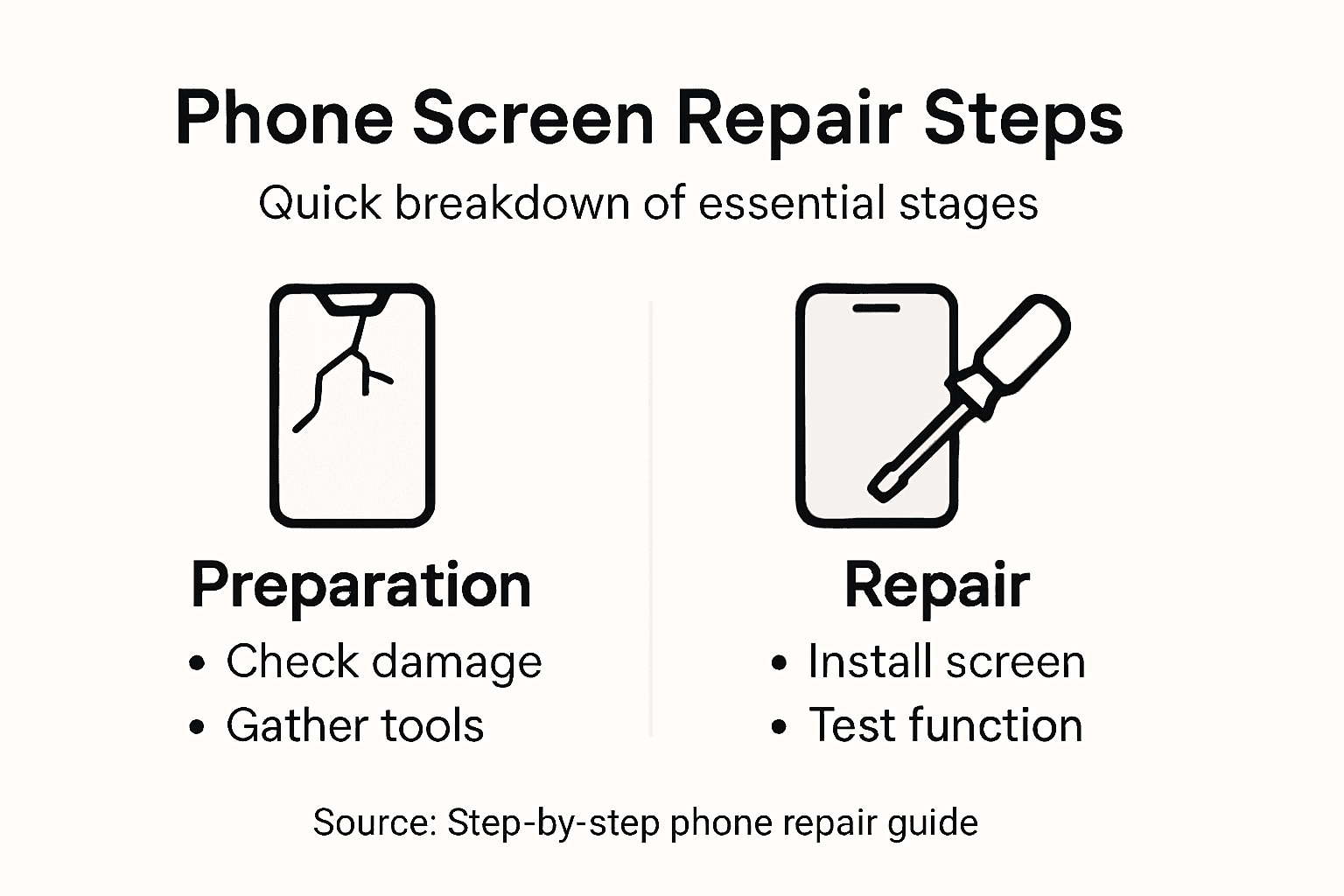
Start with visual inspection. Look at the display from different angles under good lighting. Check for dead pixels by opening a solid colour app or viewing a plain background. Scroll slowly across the entire screen to spot any dark spots that don’t change. Look for flickering, discolouration, or areas where brightness seems uneven.
Next, test touchscreen responsiveness across the entire surface. Open a drawing app or use your phone’s built-in touch test utility. Tap methodically from corner to corner, including the edges where problems often hide. The screen should respond instantly everywhere. Look for lag or areas that don’t register your touch at all.
Test multi-touch functionality by placing multiple fingers on the screen simultaneously. Checking for dead pixels, flicker, and touch delay indicates whether the replacement is functioning correctly. Pinch to zoom, rotate your fingers, and perform gestures that require recognising multiple touch points at once. Unresponsive areas may indicate loose flex cables that need reseating.
Verify hardware integration with focused tests:
- Proximity sensor – cover the top of the screen; brightness should dim
- Ambient light sensor – adjust room brightness; screen should adapt
- Multi-touch recognition – simultaneously tap different screen areas
- Screen calibration – ensure touch response matches visual targets
- Buttons and speakers – test volume and power buttons for responsiveness
Run comprehensive diagnostics using your phone’s built-in diagnostic tools if available. Android users can access diagnostics through hidden menus, whilst iPhone users have built-in test applications. Running comprehensive diagnostic assessments ensures the repair meets quality standards and the phone operates as expected. These tests verify screen calibration and sensor functionality automatically.
Test in real-world scenarios. Open your most-used apps, scroll through social media, play videos, and send messages. Use the camera and zoom function. Spend time with the phone before deciding the repair is successful. Issues that aren’t obvious during quick tests often appear during normal use.
Thorough testing immediately after repair catches faulty replacements or connection problems whilst components remain accessible for correction.
If you find problems, don’t panic. Disconnect the screen and inspect all flex cable connections. Reseat any cables that seem loose and test again. Most issues stem from cables that weren’t fully inserted during installation.
Pro tip: Record a short video of your test results—colour accuracy, touch response, and sensor function—so you have documentation of the repair’s quality if issues emerge later and you need to reference what was working.
Get Your Phone Screen Fixed with Expert Parts from Buy2fix
If you have been searching for how to fix a broken phone screen near you you know the process can be challenging. From identifying which screen components need replacement to sourcing genuine parts and performing detailed reassembly every step requires precision and the right tools. Common pain points include dealing with hard-to-find LCD assemblies or digitiser parts and ensuring the new screen performs flawlessly without touch or display issues.
Buy2fix offers exactly what you need to overcome these challenges with confidence. Our extensive inventory of mobile phone repair parts includes high-quality LCD screens, display assemblies, flex cables and more for major brands like iPhone and Samsung Galaxy. We provide professional grade components backed by a one-year warranty and tested quality assurance so you can replace your cracked screen and maintain your phone’s original touchscreen sensitivity. Plus with free UK mainland shipping and competitive pricing we make sourcing the right parts easier than ever.
Take control of your phone repair today by visiting Buy2fix. Whether you are a DIY enthusiast or a professional technician our comprehensive range of replacement components and detailed product information empower you to complete your screen replacement successfully. Don’t wait until minor damage worsens order your genuine parts now and get your mobile device looking and working like new again.
Frequently Asked Questions
How do I assess the damage on my broken phone screen?
Start by carefully examining the extent of the cracks and testing the touchscreen functionality. Tap different areas to identify unresponsive sections, and look for any signs of water or dust intrusion around the edges.
What tools do I need to fix a broken phone screen?
Gather essential tools including a precision screwdriver set, plastic pry tools, suction cups, tweezers, and adhesive. Ensure you have a clean workspace to prevent losing tiny components during the repair process.
How do I find genuine replacement screens nearby?
Search for certified repair shops that use original manufacturer parts or quality aftermarket alternatives. Ask clear questions about their sourcing and warranty to ensure you receive a durable, reliable replacement for your phone model.
What steps should I take to install the new screen?
Carefully remove the old screen by softening the adhesive, then connect the new screen’s flex cables to the motherboard. Ensure all components are securely attached and test the touchscreen functionality before sealing everything back together.
How can I verify that my new screen is functioning correctly?
Perform visual inspections for dead pixels and flickering, and test the touchscreen responsiveness across the entire surface. Run real-world tests by using your most-used apps to confirm that everything operates correctly after the repair.
Recommended
- How to Fix My Phone Screen: Complete Step-by-Step Guide – buy2fix
- How to Install a New Phone Screen Like a Pro – buy2fix
- How to Get Phone Screen Fixed Safely and Efficiently – buy2fix
- How to Fix Phone Screen Near Me Cheap: A Practical Guide – buy2fix
- how to 3d print phone case – Beginner’s guide with mockups and POD – Bettermockups
Let customers speak for us
item was packaged safely, no damage. it’s now October and since replacing it in January i’ve had no issues.

Great

They had what I was looking for ... ordering was easy, payment was easy, delivery was as promised.
-

Absolutely love this case! Heavy, sturdy and full coverage

Thank You! I really love it! 😊

For Garmin Forerunner 165 20mm Two Color Textured Silicone Watch Band(Teal)

For Samsung Galaxy S26+ 5G R-JUST Sliding Camera Life Waterproof Holder Phone Case(Black)

I ❤️ love it, it's absolutely amazing I'm sooo happy 😊

Great

I saw this item and it was just what I was looking for. I found it here but not in Amazon or e-bay. However, it was in UK, I was surprised to find that they were able to ship it to the US. Excellent company, would do business with again

This is great for when out and about, to sharpen either coloured pencils, or watercolour pencils….would order again.

Great items would bye again

I have purchased several items from this store before. Recently, I encountered an issue with my latest order. After reporting the problem to customer support, they were consistently attentive and made every effort to resolve the situation. Upon investigation, they acknowledged the issue and promptly fixed it. This experience has increased my level of trust in this store.
Thank you so much. I'm so happy.
