

iPhone 10 XR Screen Replacement: A Complete DIY Guide
Most british DIY smartphone repair fans are surprised to learn that nearly 40 percent of cracked iPhone XR screens can be replaced successfully at home with the right equipment. Taking control of your own repair project not only helps you save money but also sharpens your skills, empowering you to tackle technical challenges confidently. This guide shows how to set up your workspace, keep your process organized, and select the right tools—boosting your chances of a smooth, affordable screen replacement.
Table of Contents
- Step 1: Prepare Your Workspace And Gather Tools
- Step 2: Power Down And Remove The Broken Screen
- Step 3: Install The New iPhone XR Display Assembly
- Step 4: Reconnect Components And Secure The Display
- Step 5: Test Your iPhone XR Screen For Full Function
Quick Summary
| Key Point | Explanation |
|---|---|
| 1. Prepare a clean workspace | A stable, well-lit environment helps prevent damage to components during repair. Use a flat surface and anti-static mat. |
| 2. Turn off the iPhone XR first | Always power down the device completely before starting disassembly to avoid damaging internal components. |
| 3. Use proper tools carefully | Essential tools like screwdrivers and spudgers should be used with precision to avoid damaging delicate parts and ensure a proper fit. |
| 4. Test the new display thoroughly | After installation, check the touchscreen, display colour, and functionality like Face ID to confirm successful repair. |
| 5. Organise components during repair | Keep removed screws and parts orderly to simplify reassembly and prevent loss of critical components. |
Step 1: Prepare your workspace and gather tools
Screen replacements demand a systematic approach. Before starting your iPhone 10 XR repair, you will need to establish a clean, organised workspace that minimises potential damage to your device. Proper workspace preparation involves creating a stable, well-lit environment with sufficient room to manage delicate components.
Begin by selecting a flat, non conductive surface such as a wooden table or workbench. Spread a clean, white cloth or anti static mat to provide visual contrast and protect your device. Gather your specialised tools including precision screwdrivers (pentalobe and Phillips head), plastic spudgers, suction handles, tweezers, and an anti static wrist strap. Ensure good overhead lighting and keep your workspace free from dust, liquids, and potential sources of static electricity.
Organise your tools within easy reach and create designated areas for removed components. This systematic approach will help you track small screws and prevent accidental loss. Having a small magnetic parts tray can be incredibly useful for keeping track of minute iPhone hardware.
Here is a quick reference guide to essential tools and their functions for iPhone XR screen replacement:
| Tool | Primary Function | Importance |
|---|---|---|
| Pentalobe screwdriver | Removes bottom screws | Prevents damage to case |
| Plastic spudger | Separates components safely | Avoids metal contact |
| Suction handle | Lifts screen gently | Reduces screen cracking |
| Anti static wrist strap | Grounds user to prevent static discharge | Protects internal parts |
| Tweezers | Handles small cables and screws | Increases precision |
| Magnetic parts tray | Stores screws securely | Prevents accidental loss |
Pro tip: Create a methodical workspace layout by arranging tools from left to right in the order you will use them, minimising unnecessary movement and potential device mishandling.
Step 2: Power down and remove the broken screen
Replacing an iPhone 10 XR screen requires careful preparation and precision. Your primary goal in this step is to safely power down the device and remove the damaged screen without causing additional harm to your smartphone’s internal components. Smartphone repair protocols emphasise the critical importance of powering off the device completely before beginning any disassembly.
Start by holding down the power button and sliding the power off slider to completely shut down your iPhone. Remove any protective case or screen protector if present. Use a pentalobe screwdriver to carefully remove the two screws located at the bottom of the device near the charging port. Work slowly and maintain a steady hand to prevent stripping these specialised screws. Once the screws are removed, use a suction handle or specialised opening tool to gently lift the broken screen away from the device body.
Approach the screen removal with extreme caution. Apply consistent, gentle pressure to separate the screen, being mindful of any remaining adhesive connections. If the screen feels resistant, do not force it. Instead, use a plastic opening tool to carefully work around the edges and release the adhesive gradually.
Pro tip: Always keep a small container nearby to store screws and components in the order they were removed, which will simplify reassembly and prevent losing critical small parts.
Step 3: Install the new iPhone XR display assembly
With the damaged screen removed, you will now carefully install the replacement display assembly. iPhone display installation requires precision and patience to ensure proper connection and alignment of the new screen.

Begin by examining the replacement display assembly to confirm it matches your iPhone XR model exactly. Position the new display near the device and identify the flex connectors that will interface with the logic board. Gently align the connectors, ensuring they are straight and free from dust or debris. Use soft, consistent pressure to seat the connectors fully into their respective ports without applying excessive force. Take care not to bend or damage the delicate connector pins during this process.
Once the display is correctly positioned, carefully press down along the edges to reestablish the adhesive seal. Work methodically around the entire perimeter of the screen, applying even pressure to ensure a secure fit. Before fully sealing the device, connect the battery and power on briefly to test the display functionality. Check for responsive touch input, display clarity, and proper colour rendering to confirm a successful installation.
Pro tip: Consider using a plastic card or specialised alignment tool to apply even pressure when seating the display, which helps prevent uneven adhesion and potential air bubbles.
Step 4: Reconnect components and secure the display
With the new display assembly carefully positioned, you will now complete the critical process of reconnecting internal components and securing the screen. Smartphone repair protocols emphasise precision and systematic reconnection to ensure device functionality.
Begin by identifying the battery connector and gently reattaching it to the logic board. Ensure the connector is straight and fully seated without applying excessive pressure. Next, reconnect the display flex cables, checking that each connector is clean and properly aligned. Use a pair of tweezers to help guide these delicate connections if needed. Once all connections are secure, carefully replace the metal brackets that hold the components in place. Use your pentalobe screwdriver to reinstall the screws, working slowly and maintaining a consistent torque to prevent stripping.
Carefully inspect all connections and ensure no cables are pinched or misaligned. Run a quick diagnostic by powering on the device to confirm touch responsiveness, display clarity, and overall functionality. If everything appears correct, proceed with applying gentle pressure around the screen edges to ensure a complete and secure seal.
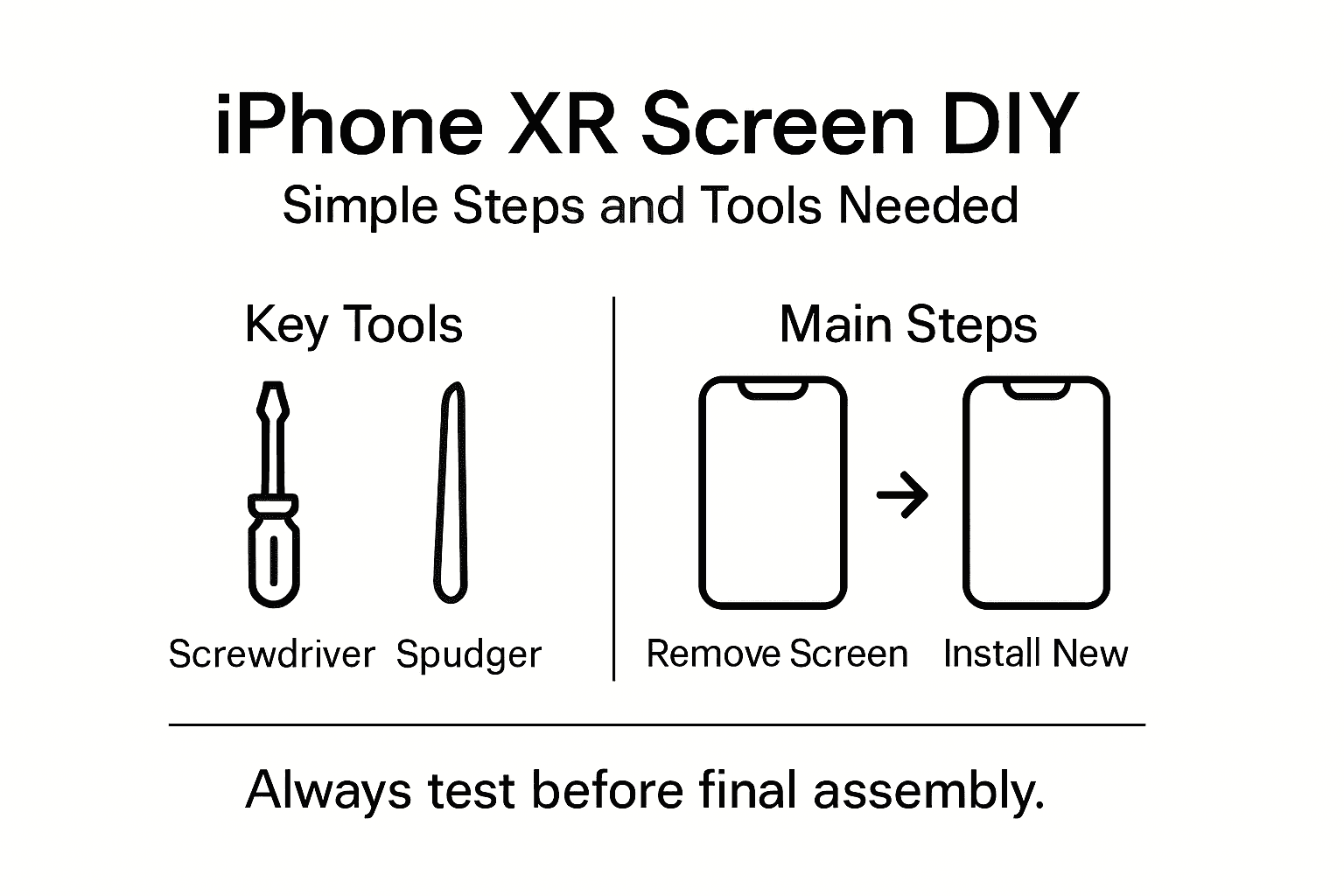
Pro tip: Keep your screwdriver magnetised to prevent small screws from falling and getting lost during the reassembly process.
Step 5: Test your iPhone XR screen for full function
With the new screen installed, you will now conduct a comprehensive functional test to ensure everything works perfectly. Screen diagnostic procedures are essential for confirming a successful replacement and identifying any potential issues.
Begin by powering on your iPhone XR and performing a series of detailed checks. Test the entire touchscreen surface by swiping, tapping, and using multi touch gestures across different areas. Look carefully for any dead pixels, discolouration, or areas with reduced touch sensitivity. Check the display brightness by adjusting settings and viewing the screen at different angles. Verify that features like True Tone and auto brightness are functioning correctly by moving between different lighting environments.
Pay special attention to specific functionalities such as Face ID, camera preview, and screen responsiveness in various applications. Open multiple apps, scroll through screens, and test typing to ensure the digitiser is working perfectly. If you notice any irregularities like flickering, unresponsive areas, or colour inconsistencies, you may need to recheck your connection or consider professional assessment.
The following table summarises key checks to perform after screen installation and the issues they may identify:
| Check Type | What to Observe | Possible Issue Detected |
|---|---|---|
| Touch response | Full screen swipe and tap | Digitiser not connected properly |
| Display colour | Uniform colours, no tints | Damaged display or loose cable |
| Face ID | Face unlock works as intended | Sensor misalignment |
| Brightness | Adjusts smoothly, no flicker | Backlight connector problem |
| Camera preview | Image displays, no glitches | Incorrect camera connector fitted |
Pro tip: Download a dedicated screen testing app from the App Store to perform advanced pixel and touch sensitivity diagnostics.
Seamlessly Upgrade Your iPhone XR Screen with Trusted Replacement Parts
Repairing your iPhone 10 XR screen yourself can be rewarding yet challenging. The article outlines essential steps like preparing a clean workspace, carefully removing the old screen, and reconnecting delicate components. However, success depends heavily on using high-quality, compatible parts to avoid issues such as digitiser malfunction or display discolouration. Reliable tools and replacement components ensure your DIY repair results in a flawless display and fully restored device function.
At Buy2fix, we understand the effort that goes into precise iPhone screen replacements. That is why we offer a comprehensive range of premium Mobile Phone Repair Parts including authentic LCD screens and display assemblies designed specifically for the iPhone 10 XR. With free UK Mainland shipping and a one-year warranty, you can confidently source the crucial parts needed to reinstall your new screen securely, test for full function, and get your device working like new. Ready to take the next step in your repair? Visit Buy2fix today to find all the specialist components and accessories your project demands.
Frequently Asked Questions
How do I prepare my workspace for an iPhone 10 XR screen replacement?
To prepare your workspace, establish a clean, organised area with a flat, non-conductive surface. Lay down a clean cloth or anti-static mat, keep tools within reach, and ensure good lighting to facilitate the repair process.
What tools do I need for the iPhone 10 XR screen replacement?
You will need specialised tools including a pentalobe screwdriver, plastic spudgers, suction handles, tweezers, and an anti-static wrist strap. Gather these tools before starting to ensure a smooth repair experience.
How do I safely remove the broken screen from my iPhone 10 XR?
To remove the broken screen, power off your device, then carefully unscrew the two screws near the charging port. Use a suction handle to gently lift the screen while working around the edges to separate it without damaging internal components.
What steps should I follow to install the new display assembly?
Start by aligning the new display assembly with the connectors on the iPhone’s logic board, ensuring each connector is clean and properly seated. Press down the edges of the display evenly to reestablish the adhesive seal, and conduct a test before fully securing it.
How can I test if my iPhone 10 XR screen is functioning properly after replacement?
To test the functionality, power on your iPhone and check the touchscreen responsiveness by swiping and tapping across the screen. Look for dead pixels, check the brightness settings, and ensure features like Face ID work correctly.
What should I do if my new iPhone 10 XR screen isn’t responding well?
If the new screen isn’t responding as expected, recheck all internal connections for proper alignment and seating. If issues persist, consider a professional assessment to identify any possible internal damage during the installation.
Recommended
- Screen Replacement iPhone XR: Complete DIY Guide for Success – buy2fix
- iPhone 10 Screen Replacement: Step-by-Step DIY Guide – buy2fix
- How Much to Replace iPhone XR Screen: Complete Guide – buy2fix
- Replacement Screen for iPhone 11: Step-by-Step DIY Guide – buy2fix
- Understanding the Home Maintenance Checklist for Homeowners – BLUSHBEES USA
Let customers speak for us
For Samsung Galaxy A26 SM-A266B Original Earpiece Speaker with Cable

Very good communication throught. Good product

Well made part very strong easy to fit great value for the money

Well packed, with fast shipping :)

Exactly what the doctor ordered…great color, comfort, and durability. Trust this watch band!

Brilliant strap, second purchase, bought bracelet before. Excellent value. Thank you

Great item for splitting your Audio signal

Outstanding product!
Next level customer service.

Very satisfied but the delivery needs to get more faster...

Good price,quick delivery

Best phone case ever! This is my second one as I broke my first. Would defo recommend

Great fitting Apple Watch bands

For Apple Watch Ultra 3 / 2 / 1 49mm RedPepper Armor Metal Case Integrated Silicone Watch Band(Steel Black White)

Good price and quick postage

